In-Depth Analysis of MRP in Business Central

By: John Ellis, Supply Chain Management and Production Consultant
Conducting Material Requirement Planning (MRP) in any environment is challenging. Meeting the demand of customers, while maintaining accurate inventory, makes planning in Microsoft Dynamics 365 Business Central an important practice to master.
Fortunately, this article documents scenarios found in the real world and how their challenges were overcome.
"Textbook" concepts will appear, throughout this article. But, its true purpose is to instruct using experience developed in customer service -- not through PDF user guides!
Filtering in the Planning Worksheet
If you want MRP’s Planning Worksheet to display only those items found in a specific General Product Posting Group, remove the "No." and "Description" fields from Calculate Plan’s "Filter: Item" criteria:
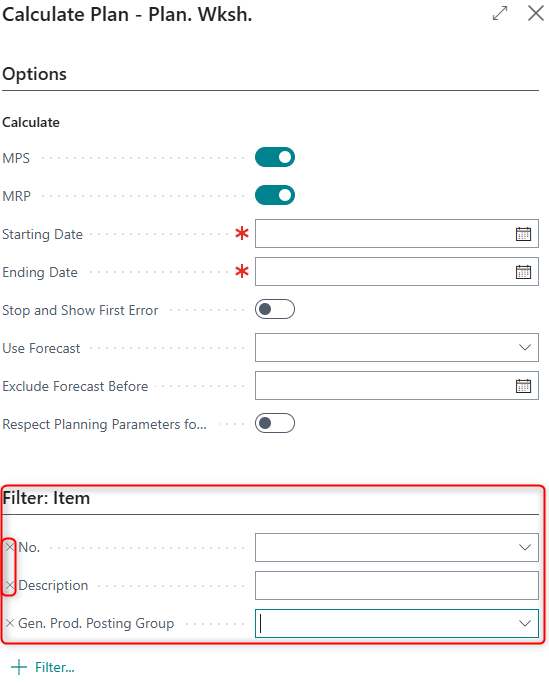
Without clicking the "X" to the left of these two fields, all inventory items will display instead of just those restricted to a General Product Posting Group.
Being that the screen represents the first step in running MRP, it’s important to understand this filtering!
Respect Planning Parameters
To ensure accuracy of data returned, enable the "Respect Planning Parameters" toggle:

Generating Orders for Subassemblies
Just as with any Bill of Material (BOM), Business Central’s Assembly BOMs can contain subassemblies. The Planning Worksheet, however, doesn’t generate Assembly Orders for a subassembly having Assemble-to-Order as its Assembly Policy. This is true, even if that subassembly’s parent BOM has Assemble-to-Order.
Business Central users have overcome this, by applying the following steps:
1) set the subassembly’s Assembly Policy to Assemble-to-Stock and
2) set the subassembly’s Reordering Policy to Order
The Planning Worksheet will generate Assembly Orders, automatically, for subassemblies driven by sales demand.
Don’t Forget to Create Stockkeeping Units
Very often, Business Central users will run Calculate Plan only to see no data in the Planning Worksheet afterward.
If Location Mandatory was enabled in the "Inventory Setup" screen during the initial implementation, then MRP must be configured in the Stockkeeping Unit Card or SKU. This holds true, regardless of the form of demand.
The quick and easy fix is to search in Business Central for Create Stockkeeping Unit:

Calculate Regenerative Plan vs. Calculate Net Change Plan
MRP is run, using one of two means -- Calculate Regenerative Plan or Calculate Net Change Plan.
Here’s the easiest way to differentiate these two:
Calculate Regenerative Plan -- used after changes in master data only, such as changing an MRP parameter in the Stockkeeping Unit Card;
Calculate Net Change Plan -- used after transactions have been conducted, such as creating and later deleting a Purchase Order.
Overflow Warning
MRP displays a warning, if too much supply exists:

In this case, the word "overflow" displays even if the "Overflow Level" field is empty in the SKU.
Watch the "Forecast"
Remove the Forecast from the "Calculate Plan" screen, unless the forecast is absolutely necessary for MRP.
If a Forecast is used unintentionally, a Purchase Order may be generated by MRP with highly inflated line item quantities!


Even if there’s no demand, the "Order Tracking" screen’s Untracked Quantity will suggest new supply documents if the SKU has a Safety Stock Quantity.
As shown in the example above, Untracked Quantity will suggest a quantity of 100 if the SKU’s "Safety Stock Quantity" field contains 100.
Conversely, 0 within Untracked Quantity means that the SKU’s "Safety Stock Quantity" field is set at 0.
Making Sense of the Data
When determining why MRP suggests the replenishment documents and quantities displayed in its Planning Worksheet, start by remembering that demand is composed of the following four sources:
sales documents,
manufacturing orders,
sales/demand forecasts, and
SKU MRP parameters.
Of these four sources of demand, the final bullet point seems to be the most overlooked.

BL010014 is an assembled SKU with these MRP parameters:

Here are additional statistics, on this SKU:

Reordering Policy = Fixed Reorder Qty.,
Reorder Point = 90,
Reorder Quantity = 50,
Minimum Order Quantity = 50,
Maximum Order Quantity = 200,
Order Multiple = 10,
Safety Stock Quantity = 70, and
Quantity on Hand = 1,600.
When first reviewing this data, many end users are dumbfounded as to why 100 is suggested as the Quantity for MRP’s suggested Assembly Order.
This confusion is compounded further, upon reviewing MRP’s warning screen:

Obviously, no transactions or forecasts are in place for this SKU. But, remember, MRP parameters are another source of demand!
In analyzing MRP parameters, Business Central is treating the planning need as get back above the Reorder Point.
With Fixed Reorder Qty., the application supplies in “chunks” of the Reorder Quantity. Since the Reorder Point is 90 and the Reorder Quantity is 50, one Reorder Quantity is not enough:
1 × 50 = 50 below reorder point of 90 and 2 × 50 = 100 above reorder point of 90.
So, the smallest multiple of Reorder Quantity of 50 that covers the Reorder Point of 90 is 100.
This analysis, also, explains why the warning screen discusses the Safety Stock Quantity of 70 and the Undefined Quantity of 30.
Busing Central needed a legal replenishment quantity of 100, and the additional 30 is simply the remainder needed to reach the planned order size.
MRP Tools
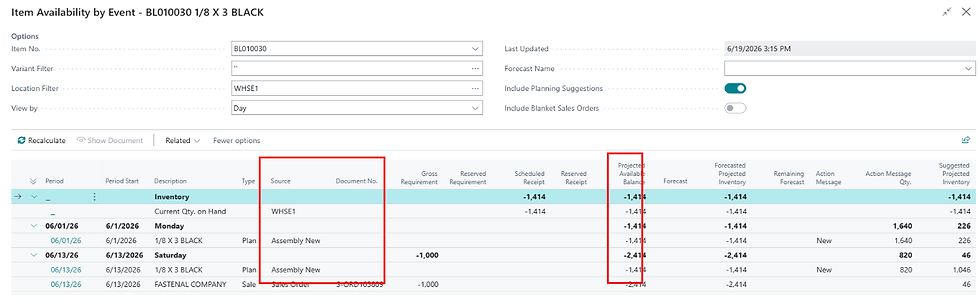
The “Availability by Event” screen, found within MRP’s Planning Worksheet, is indispensable! Not only does this screen show the SKU’s source documents, but it provides vital statistics such as Projected Available Balance:
Default Safety Lead Time
Turnkey Technologies recommends not entering a Default Safety Lead Time in the "Inventory Setup" screen:

Having this additional parameter makes auditing MRP calculations difficult.
The Planning Worksheet’s Action Messages

Location of MRP Parameters
MRP parameters reside in the SKU’s "Replenishment" and "Planning" sections:

Without data in the following fields, Business Central’s MRP engine would be ineffective:
Replenishment
Replenishment System
Lead Time Calculation
Vendor No.
Vendor Item No.
Planning
Reordering Policy
Lot-for-Lot
Fixed Reorder Qty
Maximum Qty
Order
Safety Stock Quantity
Reorder Point
Reorder Quantity
Maximum Inventory
Include Inventory
Yes = on-hand inventory is considered in planning
Safety Lead Time
Extra buffer time
Reordering Policies
The following are the four Reordering Policies, along with their simplest definitions:
Lot for Lot = pile per period
Order = sales line creates either a manufacturing order, assembly order, or purchase order
Fixed order quantity = "mins" and "maxs"
Maximum = a top level of inventory, and MRP works to fill up to this quantity
Be Mindful of Mismatches
Be careful, on how these MRP parameters are used. You don’t want a SKU’s Minimum Order Quantity to be larger than its Reorder Quantity.
For example, the following combination makes it mathematically impossible for MRP to generate any supply suggestions:
Reorder Quantity = 1,911 and
Minimum Order Quantity = 16,000.
Shoring Up Action Messages
To prevent having the Planning Worksheet cancel outdated Purchase Orders place a Rescheduling Period of, say, 2W into the SKU’s "Lot Accumulation Period" field.
Note: This technique only works for the "Lot-for-Lot" Reordering Policy.
0D
Business Central does accept "0D", or zero days, as a date formula. In fact, 0D is a valid shorthand for "due upon receipt" or "today’s date" for payment terms and date calculations.
In Business Central, date formulas are used to dynamically calculate dates based on a base date which is often today, the system date, or another field.
The 0D syntax means zero days from the base date, and effectively sets the due date to the same day as the base date.
Many companies, too, use 0D as the SKU’s Safety Lead Time.
How it works:
0D → Due date is today (i.e., the base date)
30D → Due date is 30 days from the base date
D30 → Due date is the next occurrence of the 30th day of the month (regardless of the current day)
Example:
If your document date is 3/3/2025 and you set the payment terms to DOR 0D:
Business Central will calculate the due on receipt (DOR) date as 3/3/2025 — due today
Notes:
0D is a valid numeric date offset in Business Central’s date formula syntax
It’s commonly used in payment terms and recurring document date calculations.
Always ensure your base date is set correctly (i.e., document date, posting date, or work date), so the formula applies using the right context
About the Author
John Ellis is an experienced Supply Chain Management and Production Consultant who specializes in translating complex ERP logic into practical, profitable operational strategies. With a career built in trenches of customer service rather than reading generic PDF user guides, John helps businesses move past "textbook" limitations to truly master Microsoft Dynamics 365 Business Central. He is passionate about demystifying the MRP planning engine and building predictable, resilient inventory workflows for manufacturing and distribution teams.
Connect with John: Want to optimize your planning parameters, troubleshoot unexpected action messages, or swap real-world ERP strategies? Connect with John directly on LinkedIn.